Assessments are designed for educators to curate a set of questions that can be scored to give examinees a benchmark for their knowledge and understanding of the material. Assessments can be formal or informal. Formal assessments are like exams where the user is told they have passed or failed but no more. Informal assessments allow users to see which questions were, to see the correct answer and read feedback.
Assessment structure
- Content in assessments can be split across multiple pages
- Each page on the assessment will contain a section of content followed by questions that relate to it
- You can set questions to be answered sequence or in any order
- You can specify the pass mark and number of attempts allowed
- Once the reader has submitted their answer for a question, that answer is then locked in for the remainder of that assessment
- A reader can only receive a summary of their assessment and a score once they have submitted all of their final answers for the assessment
- Assessments cannot currently be time limited
- You can offer next steps guidance to the learner at the end of the assessment, resources, further reading etc.
Creating your Assessment
- Select <My contributions> on your menu bar this will open your most recently accessed catalogue
- Select <Contribute a resource here>
- To add a resource to a folder select the folder to open it and then select <Contribute a resource here>
- To add resources to a different catalogue go to <Change catalogue> and select the one you need
 Figure 1 Changing catalogue and contributing resource link
 - You also have the option to duplicate an existing case or assessment using the Options menu for that resource
 Figure 2 Options menu
Create the title and choose <Assessment>
- Choose a title for your resource
Learning Hub reports and certificates show the session title only. Make sure your title says what subject matter the resource covers. Don't use titles like 'Quiz' or 'Assessment' on their own.
- Select <Assessment>
- Scroll down and select <Next>
- <Select> an Informal or a Formal Assessment
Informal Assessment These assessments are like ‘quizzes’. After the assessment is finished, readers can see their score and whether they passed or not, but they can also see which answers were correct and read any additional feedback you provide.
Formal Assessment These assessments are like exams. After the assessment is finished, readers will be told their score and whether they passed or not, but no more
The menu items to complete - listed in a line under the title
- Content use this menu to create your blocks (see below)
- Access You can make the resource available to everyone (General users) or only to the NHS and Social care workforce (Full users)
- Resource info holds the Description This appears on the session launch page under the launch button and Sensitive content tick yes if you want to warn viewers the may find the content offensive or disturbing
- Authors tick that you are the author or add up to ten other authors, organisation and role are optional. Select <Add> between each author. Authors can be an individual or a team
- License When contributing a resource to the Learning Hub it is important that you, as the contributor, understand the licence options available to you. You need to be aware of how your choice of licence affects how learners can interact with, and potentially share, the resource after it is added to the Learning Hub.
Are you allowed to share the contents of this resource? If you are, you can choose from four licences. Each licence offers different levels of restrictions on how the resource can be shared and used.
If you are unsure whether to use a Creative Commons license, select the links below for more information.
Creative Commons: Attribution-NonCommercial 4.0 International
Creative Commons: Attribution-NonCommercial-ShareAlike 4.0 International
Creative Commons: Attribution-NonCommercial-NoDerivatives 4.0 International
All Rights Reserved This licence allows you, as the creator of the resource you are contributing to the Learning Hub, to reserve all rights capable of being reserved under the relevant applicable laws related to the reuse of the materials included in your resource. However, by sharing your resources on the Learning Hub you are inviting users to access, read, and be educated by the resource you have contributed.
This licence is available to contributors both to preserve the autonomy of those creating and sharing their resources on the Learning Hub, and to offer a licence option that can be applied to resources created where the contributor is not the sole creator of the materials, meaning they do not have the right to use a more open licence (see Creative Commons options above) for their contribution.
Certificate The Learning Hub can supply a certificate on completion of your resource for your learners. (You can supply an image for your certificate logo when requesting your catalogue). Tick Yes or No to this.
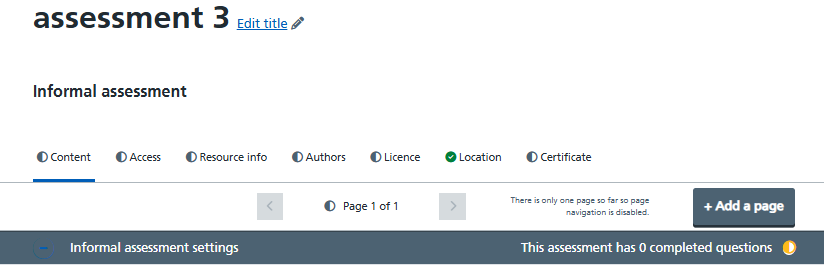
Figure 3 Assessment editing screen
Now go back to Content on the left to choose the assessment settings. These can be changed at any time, they are:
Allow the learner to work through the assessment pages in any order. Yes or No
Add a pass mark for this assessment. This is the percentage that the learner must achieve in order to pass. This can be left blank if a score is not required in an informal assessment
Define the number of attempts in a formal assessment
Provide guidance for the learner at the end of this assessment.
Save these settings and scroll on down to the Add Content and Add Question buttons
Content blocks
You must have at least one content block per page to publish your Assessment.
Select <Add content> to open a menu of options
- Text - opens a text editor
- Slide viewer - You can upload .ndpi .tif .tiff .svs and .zip files from your computer or other storage drive you are connected to. Please upload MIRAX (.mrxs) as a zip file, Maximum file size 10.0 GB. Please note an .mrxs file is not a standalone file, it requires its sibling .dat files in the same folder
- Media - images, audio or video files
- Image carousel - allows multiple images to be viewed in turn
Once the content has uploaded to the block you have the following menu options
 Figure 4 Menu options
- Add title
- The small circle displays green with a tick when all the required items have been added (ie alt text on images)
- Up and down arrows to rearrange your blocks (do not show on your last block)
- Duplicate icon with two squares
- Dustbin icon to delete the block. Please note: DELETE CANNOT BE UNDONE
Now you can add another content block, a question block or a new page. The <Add page> button is at the top of the Case editor.
Please note that we have not yet created a way to rearrange pages or move blocks between pages. Please make sure you are adding pages and content in the right positions to avoid losing work.
Question blocks
Select <Add question> to open a menu of options
- Single Best Answer learners choose one option from a list of possibilities.
- Consider the Possibilities learners choose Yes or No in response to multiple questions.
- Select Pinned Areas on a Whole Slide Image learners answer a question by selecting one or more pinned areas within a whole slide image.
- Match Game learners match answers together.
You can add text, videos or images to questions. Text based answers will be ordered alphabetically.
In informal assessments you can add feedback and decide if the user can click to see the correct answer for guidance. These two options are not available in formal assessments.
Preview and publish
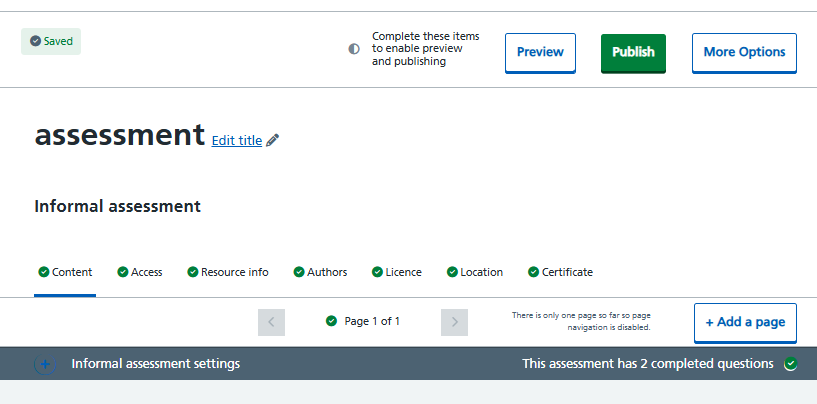 Figure 5 Assessment ready to publish
Once you have added the Assessment information so the circles are ticked and green, and at least one block you have the options to <Preview> or <Publish> your Assessment Under <More options> you can save for later, delete the draft, duplicate the resource or copy its content.