Catalogue admins can approve requests for access to their catalogue, invite users to access the catalogue and remove users approved by catalogue admins. Users approved by platform admins cannot be removed as these will be TEL staff who need access to help with support requests on your catalogue.
How to manage catalogue access
- Log in and search for your catalogue using the search bar
- As long as you have admin permissions for the catalogue you will have a green <Manage this catalogue> button available
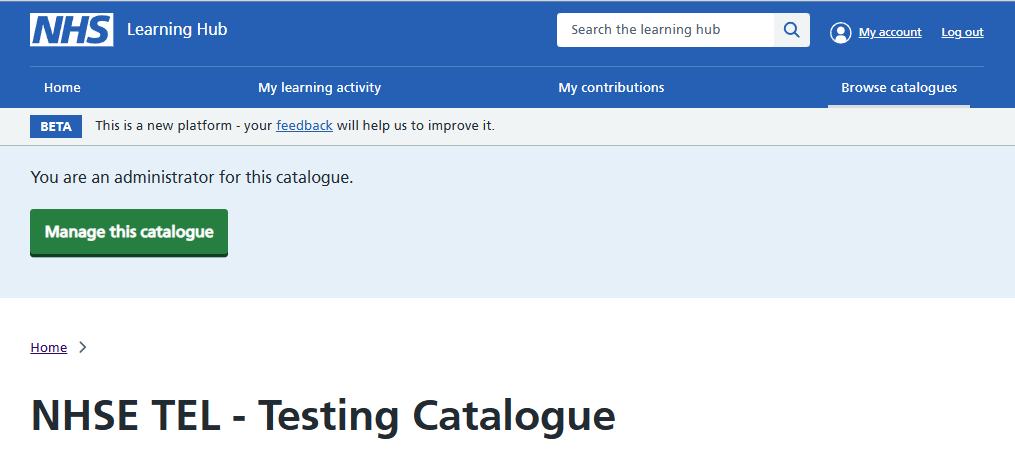 Figure 1 Manage this catalogue button
Invite users
- Select the <Invite users> button to open the invitation box
- Enter the email address of the user you want to invite
Approve access requests
- Select the <Manage this catalogue> button to open the Catalogue Management screen
- Select <Requests> under the catalogue title if it isn't open by default
- Select the user name to open a screen that allows you to approve or deny the access
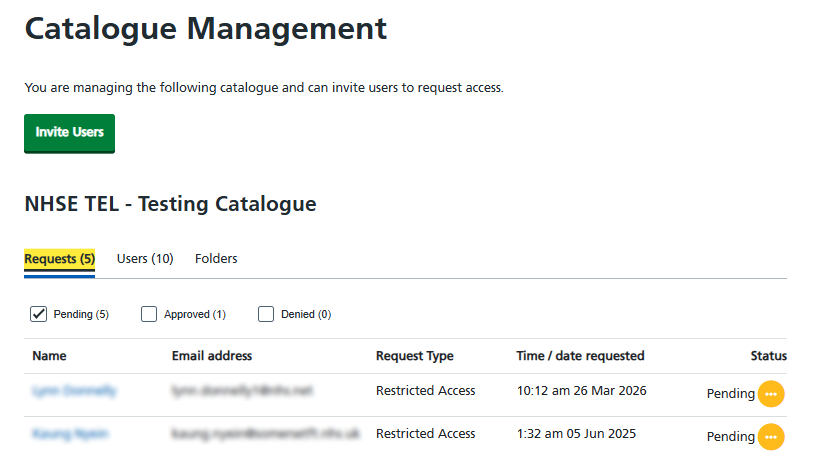 Figure 2 Inviting users
Remove users
- Select the <Users> menu under the catalogue title
- Select the cross under the Remove heading to end access to the catalogue for that user
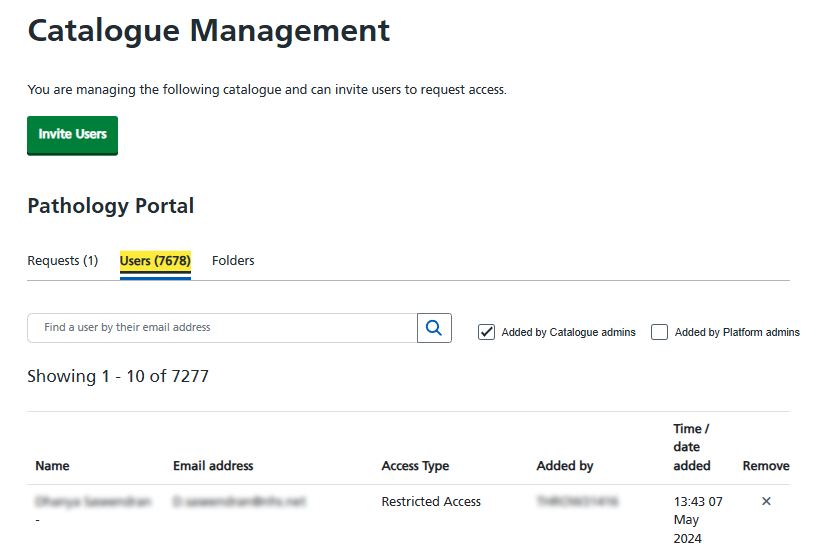 Figure 3 Removing users from your catalogue