Please consider providing certificates for your resources, most learners require them. This can be done when you create the resource or retrospectively for content that has already been uploaded to the Learning Hub. Certificates are available for all learning resource types.
There are two different processes for adding certificates depending on the resource. These are outlined below. If you need your logo to appear on your certificates this is added to your catalogue. You can send us one to add if you didn't supply it when the catalogue was set up.
Certificate images
Image: must be 240px x 240px (aspect ratio 1:1) or 240px x 160px (aspect ratio 3:2)
Format: .png .jpg .gif .svg
File: 50kB size limit
You do not need to include whitespace around the image (this will be added automatically)
Certificates on files, web links, articles and elearning resources
The certificate is activated towards the bottom of the contribution form, select <Yes> to activate a certificate.
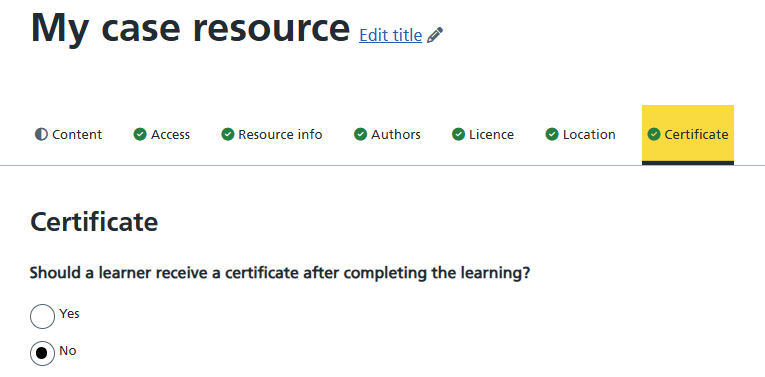
Certificates on assessments and case learning resources
There is a dedicated tab for the purpose of providing certificates for these resource types.
Making certificates available for resources already on the Learning Hub
As well as making certificates available for new contributions to the Learning Hub, contributors can make certificates available for existing content on the Learning Hub.
To make certificates available for an existing content you will need to have catalogue editor rights for the catalogue where the learning resource is located, then:
- Navigate to the catalogue and open the resource you want to add a certificate for
- Select the green <Edit resource> button at the top of the window
- Select <Continue> to confirm you are about to make a new draft of the resource
- Go to the certificate section of the resource as in the information above
- When you have selected <Yes> to add the certificate, select the <Publish> button to update the resource and make the certificate available